
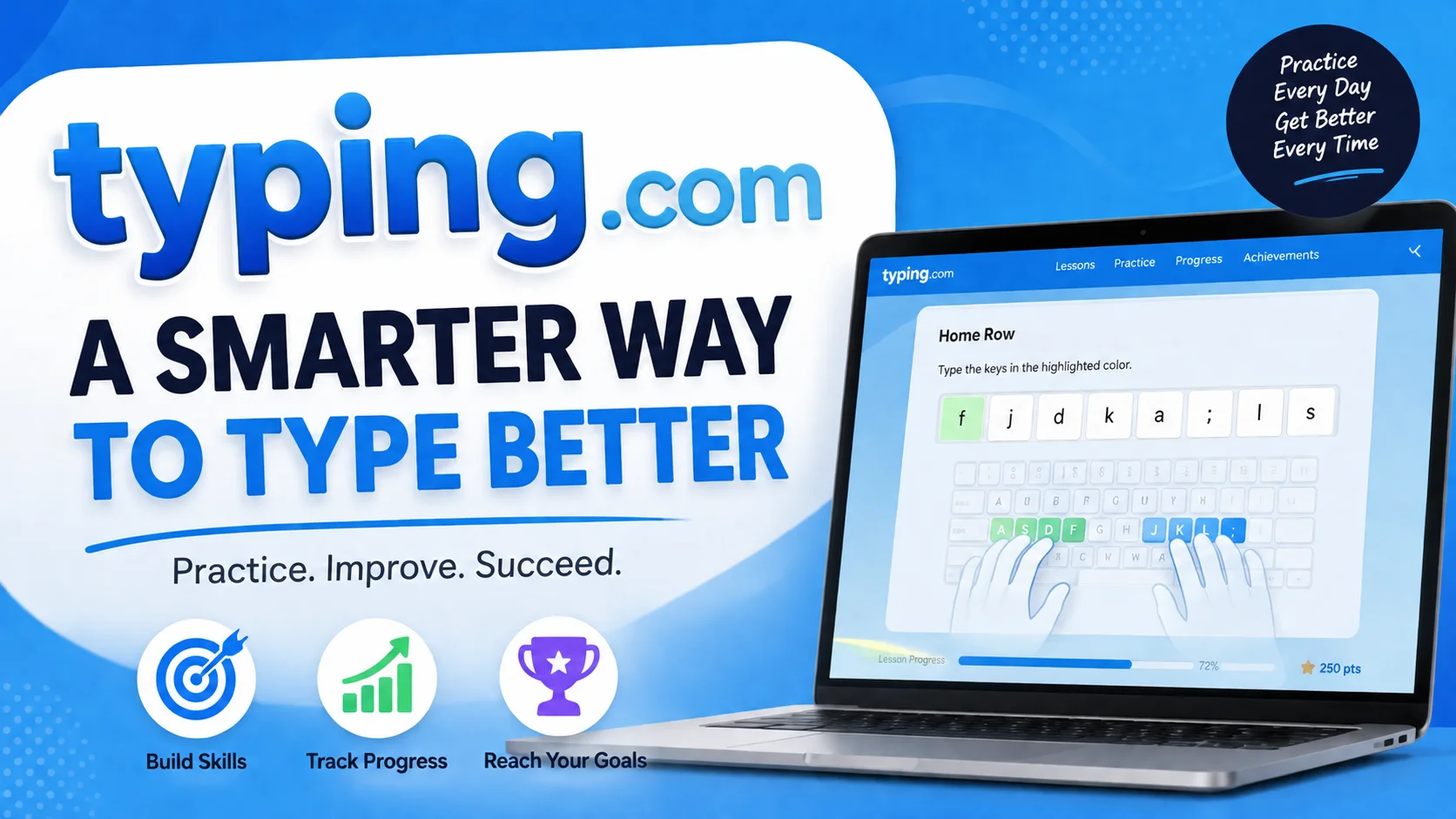
Typing.com is a completely free, browser-based typing tutor built for students, teachers, and self-learners who want to master touch typing without paying a subscription fee. It combines structured lessons, typing games, coding-based practice, and a full teacher dashboard, making it one of the most widely used keyboarding platforms in K-12 schools today. If you want a no-cost, no-fuss way to type faster and more accurately, Typing.com is worth starting with.
Remember the first time you sat in front of a keyboard and hunted for every single letter like it owed you money? That awkward two-finger typing phase is a rite of passage — but it doesn’t have to last forever. Somewhere between that clumsy start and confidently rattling off 60+ words per minute lies a tool that millions of students, teachers, and career-switchers quietly rely on: Typing.com.
It isn’t flashy. It doesn’t run ads promising to make you a “typing genius overnight.” What it does instead is quietly deliver one of the most complete, genuinely free typing curriculums on the internet. In this review, we’ll unpack what Typing.com actually offers, who it’s built for, how it compares to paid alternatives, and whether it deserves a spot in your — or your classroom’s — daily routine.

What Is Typing.com?
Typing.com is a browser-based platform designed to teach touch typing, digital literacy, and even basic coding skills to learners of all ages. It’s especially popular in K-12 education, where tens of thousands of schools use it to build keyboarding skills into the curriculum, but it’s just as useful for homeschoolers, remote workers, job seekers, and anyone who simply wants to stop looking at their keyboard while they type.
Unlike many “freemium” tools that lock the good stuff behind a paywall, Typing.com offers its full lesson library, testing tools, and teacher-reporting features at no cost — a rarity in the edtech space.
Key Features That Set Typing.com Apart
1. Structured, Progressive Lessons
Typing.com’s curriculum is built like a staircase, not a cliff. Lessons start with home-row basics and gradually introduce new keys, numbers, symbols, and punctuation. Each lesson builds on the last, so learners aren’t overwhelmed early on and aren’t bored later.
2. Typing Games That Don’t Feel Like Homework
Practice doesn’t have to be dull. Typing.com wraps repetition inside genuinely fun games — including a choose-your-own-adventure style typing story and arcade-inspired challenges like Keyboard Jump — that turn muscle-memory drills into something learners actually want to come back to.
3. Speed and Accuracy Testing
The platform offers multiple typing tests to measure words-per-minute (WPM) and accuracy, and it keeps a history of recent results so learners can visually track improvement over time. If you’ve ever wondered “how fast do I actually type?”, this is where you find out.
4. Problem-Key Tracking
One of Typing.com’s smartest touches is that it identifies which specific keys keep tripping you up and quietly serves you extra practice for those exact trouble spots, rather than making you repeat entire lessons.
5. Coding and Digital Literacy Lessons
Beyond standard keyboarding, Typing.com includes lessons on typing code syntax and broader digital citizenship topics — a smart nod to how “typing” today means more than just prose.
6. Teacher and Classroom Tools
For educators, Typing.com’s teacher dashboard allows real-time progress tracking, grading, homework assignments, and easy classroom integration through Google Classroom, Clever, and ClassLink single sign-on. Reporting tools make it simple to see exactly where each student stands.
7. Certificates and Achievements
Gamified badges and printable certificates give learners — especially younger ones — a tangible sense of accomplishment, which keeps motivation high across weeks of practice.
8. Privacy-First Design
Typing.com doesn’t require personally identifiable information to use the platform, encrypts communications, and doesn’t sell user data — a meaningful reassurance for schools and parents evaluating edtech tools.
Read more: Climate Controlled Storage 101
Is Typing.com Free?
Yes — and this is arguably its biggest selling point. Typing.com offers a free-forever plan with full access to lessons, games, testing, and even district-wide administrative tools, with no limits on content. There’s also a custom/paid tier aimed at larger institutions that want additional support, but individual learners, families, and most classrooms never need to pay a cent to get the full experience.
Who Should Use Typing.com?
- Students (K-12): The core audience, with age-appropriate lessons and classroom-ready reporting.
- Homeschool families: A structured, self-paced curriculum without any subscription cost.
- Job seekers and professionals: Anyone looking to boost typing speed for productivity or to meet a WPM requirement for a job.
- Adult beginners: People who never learned proper touch typing and want to fix bad habits.
- Coders and programmers: The code-typing lessons offer a niche but genuinely useful practice mode.
Pros and Cons
Pros
- Completely free with no feature restrictions
- Structured curriculum suitable for true beginners
- Engaging games keep practice from feeling like a chore
- Strong classroom and reporting tools for teachers
- Tracks problem keys and personalizes practice
- Privacy-conscious, ad-light experience
Cons
- Interface feels more “school software” than sleek consumer app
- Some advanced learners may find the pacing slow at first
- Fewer flexible customization options compared to premium competitors like Typesy
- Best experienced in a full browser rather than on mobile
How to Get Started on Typing.com

- Visit Typing.com and create a free account (as a student, teacher, or individual learner).
- Take the initial typing test to establish your baseline speed and accuracy.
- Start with home-row lessons if you’re a beginner, or jump to a level that matches your current skill.
- Practice consistently — even 10-15 minutes a day builds meaningful muscle memory.
- Use the games and periodic tests to keep practice varied and track your progress over time.
- Teachers can create a class, invite students, and use the dashboard to assign and monitor lessons.
Typing.com vs. the Alternatives
Compared to paid tools like Typesy, or gentler early-learning platforms like Keyboarding Without Tears, Typing.com sits in a sweet spot: it’s more structured and classroom-friendly than casual typing games, yet completely free where premium competitors charge a subscription. If you want extensive customization or a more polished interface, a paid tool might edge ahead — but for cost-conscious learners and schools, Typing.com remains hard to beat.
Tips to Get the Most Out of Typing.com
- Practice daily, not in marathon sessions. Short, consistent sessions build muscle memory faster than occasional long ones.
- Resist the urge to look down at the keyboard. It feels slower at first, but it’s the entire point of touch typing.
- Use the problem-key reports. Don’t skip the extra practice Typing.com serves up for your weak spots — that’s where the real gains happen.
- Mix lessons with games. Alternating structured drills with typing games keeps motivation from dipping.
- Retest your WPM regularly. Seeing measurable progress is one of the best motivators to keep going.
Read more: What Beats Rock?
Frequently Asked Questions
Is Typing.com actually free?
Yes. Typing.com offers its full lesson library, typing tests, and teacher dashboard for free, with no hidden paywalls on core content.
Is Typing.com good for beginners?
Yes. Its lessons start from the absolute basics — home-row keys — and progress gradually, making it well-suited for complete beginners of any age.
Can adults use Typing.com, or is it just for kids?
Adults can absolutely use Typing.com. While it’s popular in K-12 schools, the same structured lessons and typing tests work well for adult beginners and professionals looking to improve their speed.
How long does it take to learn touch typing on Typing.com?
With consistent daily practice of 10-15 minutes, many learners see noticeable improvement within a few weeks, though reaching a comfortable, fast typing speed typically takes a few months.
Does Typing.com work on Chromebooks and school devices?
Yes. Typing.com is browser-based and integrates with Google Classroom, Clever, and ClassLink, making it a common choice for Chromebook-heavy classrooms.
Is Typing.com safe for kids to use?
Typing.com states that it doesn’t require personal information to use the platform and does not sell user data, which is a key reason many schools and parents trust it.
Final Verdict
Typing.com earns its reputation the old-fashioned way: by doing one job — teaching people to type well — and doing it thoroughly, without charging for the privilege. Whether you’re a teacher managing thirty Chromebooks, a homeschool parent building a curriculum, or an adult finally ready to stop hunting for the letter “P,” Typing.com offers a genuinely complete path to faster, more confident typing. For a tool that costs nothing, it’s remarkably hard to find a reason not to try it.